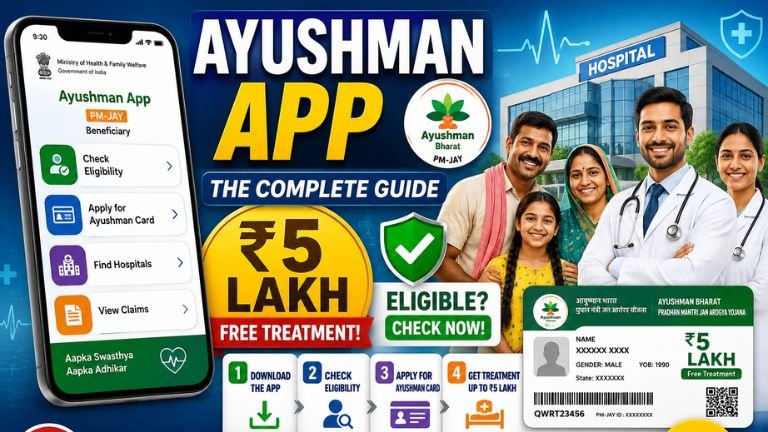
The Complete Guide to the Ayushman App: How to Download, Check Eligibility, Apply, and Access ₹5 Lakh Healthcare a 27
In India, accessing quality, affordable healthcare has long been a significant challenge for millions of families. A sudden medical emergency can quickly exhaust household savings. To address this issue, the Government of India launched the Ayushman Bharat Pradhan Mantri Jan Arogya Yojana (ABPM-JAY)—the world’s largest government-funded health insurance scheme.
To make this scheme accessible to every citizen, the National Health Authority (NHA) introduced the Ayushman App. This official mobile application brings the entire process of searching for family eligibility, completing e-KYC verification, downloading digital Ayushman Cards, and finding empanelled hospitals directly to your smartphone.
This comprehensive guide covers everything you need to know about the Ayushman App, its features, step-by-step usage procedures, troubleshooting tips, and how it simplifies healthcare access across India.
What is the Ayushman App?
The Ayushman App is the official Android application developed by the National Health Authority (NHA), Ministry of Health and Family Welfare, Government of India. Designed as a self-service digital portal under the Ayushman Bharat Digital Mission (ABDM), the app allows beneficiaries, operators, and field health workers (such as ASHA and Anganwadi workers) to manage health cards digitally.
Through the app, any citizen can quickly verify whether their family is covered under PM-JAY or state-specific health schemes, complete biometric or face-based identity verification, and instantly generate an official Ayushman Card without visiting a Common Service Centre (CSC) or government hospital.
Key Benefits of the Ayushman Bharat (PM-JAY) Scheme
Before diving into the app’s features, it is essential to understand what benefits the Ayushman Card delivers:
- Comprehensive Financial Protection: Covers up to ₹5,00,000 per family per year for secondary and tertiary hospitalization care.
- Cashless and Paperless Treatment: Beneficiaries do not need to pay out-of-pocket cash at empanelled public or private hospitals.
- Pre- and Post-Hospitalization Expenses: Covers costs for medical examinations, consultations, diagnostic tests, and medicines starting 3 days before admission and up to 15 days following discharge.
- No Restrictions on Family Size or Age: Every individual in an eligible household is covered, regardless of age, gender, or family size.
- Coverage for Pre-Existing Conditions: All pre-existing diseases and medical conditions are covered from day one of card activation.
- Pan-India Portability: An Ayushman Card issued in one state can be used for treatment in any empanelled hospital across India.
Key Features of the Ayushman App
The app is built to serve both general beneficiaries and official health operators. Below are its core functions:
| Feature | Description | Key Advantage |
| Dual Login Roles | Log in as either a Beneficiary (general public) or an Operator (ASHA/CSC staff). | Enables self-service for individuals and assisted registration by field staff. |
| Aadhaar Face Authentication | Integrates directly with the Aadhaar FaceRD engine for facial recognition. | Eliminates the need for external fingerprint or iris scanners. |
| Multi-Criteria Search | Search by Aadhaar Number, Ration Card (Family ID), PMJAY ID, or Location. | Allows quick identification of family records. |
| Instant Card Download | Download high-resolution, QR-code verified PDF Ayushman Cards upon approval. | Provides immediate print-ready cards for hospital admissions. |
| Hospital Locator | Searchable database of empanelled public and private healthcare facilities. | Filters hospitals by state, district, and medical specialty. |
| ABHA Integration | Create and link your 14-digit Ayushman Bharat Health Account (ABHA) ID. | Consolidates digital health records in one place. |
| Multilingual Support | Available in major Indian languages alongside English and Hindi. | Ensures accessibility for non-English speaking demographics. |
Prerequisites Before Using the App
To ensure a smooth setup and verification process, make sure you have the following items ready:
- Active Mobile Number: Must be capable of receiving SMS OTPs.
- Aadhaar Card: Your 12-digit Aadhaar number for identity verification.
- Linked Mobile with Aadhaar: Required if choosing the Aadhaar OTP method for e-KYC.
- Ration Card / Family ID: Needed to search records if Aadhaar is not linked to the PM-JAY database.
- Aadhaar FaceRD App: If you plan to use face authentication instead of OTP, download the official Aadhaar FaceRD app (developed by UIDAI) from the Google Play Store prior to starting e-KYC.
How to Download and Set Up the Ayushman App
Setting up the app takes only a few minutes. Follow these steps:
Step 1: Download and Installation
- Open the Google Play Store on your Android smartphone.
- Search for “Ayushman App”. Ensure the developer listed is National Health Authority – NHA.
- Tap Install.
Step 2: Granting Permissions
- Open the app after installation.
- Grant the required system permissions for Location, Camera (necessary for face-eKYC), and SMS/Phone.
Step 3: Logging In
- On the home screen, choose your role: Beneficiary or Operator.
- Enter your 10-digit mobile number and tap Verify.
- Select your preferred authentication mode (OTP or Mobile OTP).
- Enter the 6-digit OTP received via SMS, input the captcha code shown on screen, and tap Login.
Step-by-Step: How to Check Eligibility and Download Your Ayushman Card
Once logged in, follow this step-by-step walkthrough to verify your family records, complete e-KYC, and download your digital card.
+-------------------------------------------------------------------+
| 1. Search Beneficiary                                             |
|    Select State -> Scheme (PMJAY/State) -> Search By (Aadhaar/Ration) |
+-------------------------------------------------------------------+
                                 |
                                 v
+-------------------------------------------------------------------+
| 2. Identify Family Members                                        |
|    Green = Approved | Yellow/Orange = Unverified | Red = Pending  |
+-------------------------------------------------------------------+
                                 |
                                 v
+-------------------------------------------------------------------+
| 3. Complete e-KYC                                                 |
|    Choose Auth Method: Aadhaar OTP / Face Authentication          |
+-------------------------------------------------------------------+
                                 |
                                 v
+-------------------------------------------------------------------+
| 4. Match & Approval                                               |
|    System cross-checks Aadhaar data with PM-JAY Database          |
+-------------------------------------------------------------------+
                                 |
                                 v
+-------------------------------------------------------------------+
| 5. Download Card                                                  |
|    Tap "Download Card" to save the verified PDF with QR Code      |
+-------------------------------------------------------------------+
1. Search for Your Household Record
- Select your State from the drop-down menu.
- Select the Scheme (e.g., PMJAY, State Health Scheme, or BOCW for construction workers).
- Choose your Search By parameter:
- Aadhaar Number (Recommended for fastest lookup)
- Family ID / Ration Card Number
- Name & Location (Rural/Urban district filter)
- PMJAY ID
- Tap Search.
2. Check the Status of Family Members
The screen will display a list of all individuals linked under that household record along with color-coded status badges:
- Approved (Green): e-KYC is complete; the card is ready for download.
- Unverified / Identified (Yellow/Orange): Record exists, but e-KYC authentication is required.
- Pending (Red): e-KYC submitted and currently undergoing official verification.
3. Perform e-KYC Verification
- Tap the Do e-KYC button next to the unverified family member’s name.
- Choose your preferred authentication method:
- Aadhaar OTP: A 6-digit code will be sent to the mobile number registered with UIDAI.
- Face Authentication: The app launches the camera via Aadhaar FaceRD. Ensure you are in a well-lit room, look straight at the camera, and blink when prompted.
- Fingerprint / Iris: Requires an external biometric scanner connected via USB (primarily used by operators).
- After successful authentication, take or upload a live portrait photograph of the beneficiary using the front camera.
4. Download the Digital Ayushman Card
- Once the details on Aadhaar match the scheme record, auto-approval is triggered.
- The status updates to Approved.
- Tap the Download Card icon.
- Select the specific family member’s card or download cards for all approved members simultaneously.
- The digital card downloads as a high-quality PDF containing an official NHA digital signature and QR code.
How to Find Empanelled Hospitals Using the App
Having an Ayushman Card is most effective when you know where to use it. The app provides a dedicated hospital discovery tool:
- On the app home screen, tap Search Hospitals or Find Hospital.
- Select your State and District.
- Choose the Hospital Type (Public / Private / Medical College).
- Select the Specialty required (e.g., General Surgery, Cardiology, Nephrology, Oncology, Orthopedics).
- Tap Search.
The app generates a detailed list of empanelled facilities including full address details, emergency contact numbers, and the specific medical specialties covered under PM-JAY at each location.
Ayushman Card vs. ABHA Card: Key Differences
Many citizens confuse the Ayushman Card with the ABHA (Ayushman Bharat Health Account) Card. While both are part of the broader Ayushman Bharat ecosystem, they serve distinct purposes:
| Criteria | Ayushman Card (PM-JAY) | ABHA Card (ABDM) |
| Primary Objective | Provides health insurance coverage and cashless hospitalization. | Acts as a digital health identity card for storing medical history. |
| Financial Cover | Up to ₹5,00,000 per family/year for treatment. | No insurance benefit or direct financial assistance. |
| Eligibility | Low-income and vulnerable households identified via SECC/Ration Card. | Open to all Indian citizens regardless of income level. |
| Card Identity | PMJAY ID / Beneficiary ID | Unique 14-digit ABHA Number & @abha address. |
| Core Use Case | Presented at hospital admission for cashless treatment. | Presented at clinics/labs to share diagnostic reports digitally. |
Common Issues & Troubleshooting Solutions
1. “e-KYC Redirection Failed” or App Crash During Face Scan
- Cause: The required Aadhaar FaceRD system service is either not installed or missing camera permissions.
- Solution: Go to the Google Play Store, search for Aadhaar FaceRD by UIDAI, install or update it, and grant camera permissions under system settings. Restart the Ayushman App and try again.
2. “Aadhaar and Scheme Data Match Score Low”
- Cause: Mismatches between names, dates of birth, or gender in Aadhaar records compared to Ration Card or SECC databases.
- Solution: If the name spelling differs significantly, update your Aadhaar details at an official UIDAI centre to match your Ration Card details, or contact an official Operator/CSC center for manual verification routing.
3. “Mobile Number Not Registered with Aadhaar”
- Cause: The phone number used does not match UIDAI records for OTP verification.
- Solution: Use the Face Authentication option instead of Aadhaar OTP, or log in via an official Operator who can perform fingerprint authentication.
4. “Card Status Stuck in Pending”
- Cause: The submission requires manual review by the State Health Agency (SHA) due to minor data discrepancies.
- Solution: Approvals typically process within 24 to 72 hours. Check back periodically using the “Search” feature in the app.
The Ayushman App makes managing health coverage accessible right from your phone. By eliminating long queues at registration kiosks and streamlining e-KYC through facial recognition, the National Health Authority has made it simple for eligible households to claim their ₹5 Lakh annual health coverage.
Downloading your Ayushman Card and locating nearby empanelled hospitals before an emergency arises is a critical step in protecting your family’s health and financial security.