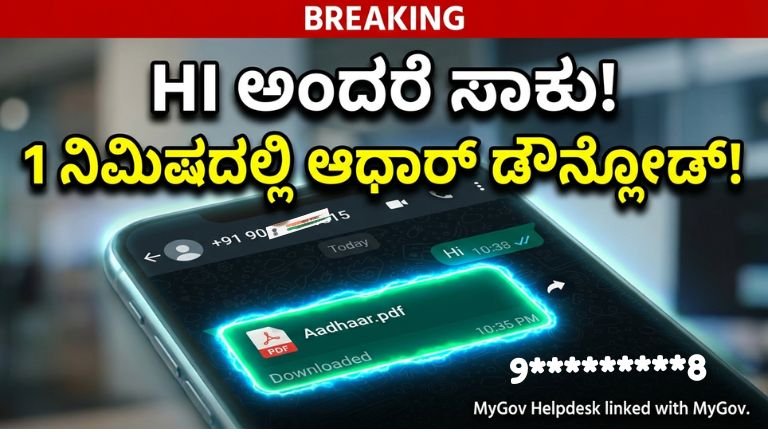
How to Download Aadhaar Card Using WhatsApp (MyGov Helpdesk) – Complete 2026 Guide WatsApp
In today’s fast-moving digital world, government services are becoming simpler and more accessible. Imagine this situation: you urgently need your Aadhaar card for bank verification, SIM activation, scholarship application, or government scheme enrollment—but you don’t have the physical card with you. Earlier, this meant visiting a cyber café, logging into the UIDAI portal, or standing in long queues.
Now, things are different.
Thanks to the Government of India’s digital initiatives, you can download your Aadhaar card directly through WhatsApp using the official MyGov Helpdesk integrated with DigiLocker.
Yes, you read that correctly.
With just a simple “Hi” message on WhatsApp, you can securely access and download your e-Aadhaar in PDF format within minutes.
This detailed 2026 guide explains everything you need to know—how it works, step-by-step process, eligibility, security, troubleshooting, benefits, and frequently asked questions.
What Is Aadhaar and Why Is It Important?
Aadhaar is a 12-digit unique identity number issued by the Unique Identification Authority of India (UIDAI). It serves as a primary identity proof across India and is linked to various services such as:
- Bank accounts
- PAN card
- LPG subsidy
- Government welfare schemes
- Scholarships
- SIM card verification
- Income tax filing
Because Aadhaar is so widely used, losing access to it—even temporarily—can cause inconvenience. That’s why digital Aadhaar (e-Aadhaar) is extremely useful.
What Is MyGov WhatsApp Helpdesk?
The Government of India launched the MyGov WhatsApp Helpdesk during the COVID-19 pandemic for vaccine certificate downloads. Due to its success, the service was expanded to include:
- Aadhaar Card
- PAN Card
- Driving License
- Marks Cards
- Other DigiLocker documents
This service works through DigiLocker integration, ensuring official and secure document access.
Is It Real and Safe?
Yes, it is 100% official.
The service is operated by the Government of India through:
- MyGov
- DigiLocker
Security features include:
- OTP-based verification
- Aadhaar-linked mobile authentication
- Secure document access through DigiLocker
- End-to-end encryption via WhatsApp
The e-Aadhaar downloaded via WhatsApp is legally valid and equivalent to the original physical Aadhaar card under UIDAI rules.
Requirements Before You Start
Before beginning the process, ensure the following:
- Your mobile number is linked to your Aadhaar.
- WhatsApp is installed on your smartphone.
- You have access to your registered mobile number (for OTP).
- DigiLocker account (optional but recommended; can be created during process).
Without mobile number linkage, OTP verification will fail.
Official WhatsApp Number
To download Aadhaar via WhatsApp, use the official MyGov Helpdesk number:
📱 +91 ***
Always verify the number before proceeding to avoid fraud.
Step-by-Step Guide: Download Aadhaar Using WhatsApp
Follow these simple steps carefully:
Step 1: Save the Official Number
Save this number in your phone contacts:
+91 ********
Name it as “MyGov Helpdesk” for easy identification.
Step 2: Open WhatsApp and Send “Hi”
Open WhatsApp.
Search for the saved contact.
Send a message: Hi or Namaste.
You will receive an automated reply instantly.
Step 3: Choose DigiLocker Services
The chatbot will display multiple options.
Select:
DigiLocker Services
You may need to reply with the number corresponding to DigiLocker.
Step 4: Confirm DigiLocker Account
The bot will ask:
“Do you have a DigiLocker account?”
If yes, reply: Yes
If not, you will be guided to create one.
Step 5: Enter Your Aadhaar Number
You will be asked to enter your 12-digit Aadhaar number.
Type it carefully and send.
Step 6: OTP Verification
An OTP will be sent to your Aadhaar-linked mobile number.
Enter the OTP in the WhatsApp chat.
This confirms your identity.
Step 7: Access Available Documents
After OTP verification, you will see a list of documents linked in your DigiLocker account.
Select:
Aadhaar
Step 8: Download e-Aadhaar PDF
Within seconds, you will receive your Aadhaar card in PDF format.
Download and save it securely.
What Is the Password for Aadhaar PDF?
The downloaded Aadhaar PDF is password-protected.
Password format:
First 4 letters of your name (CAPITAL letters) + Year of birth (YYYY)
Example:
Name: kadima KUMAR
Year of Birth: 1***
Password: ****
Benefits of Downloading Aadhaar via WhatsApp
- No need to visit cyber café
- Completely free service
- Instant access
- Official government source
- Secure OTP verification
- Legally valid document
- Works anytime, anywhere
Common Problems and Solutions
OTP Not Received
Possible reasons:
- Mobile number not linked
- Network issue
- DND enabled
Solution:
Ensure mobile number is linked with Aadhaar.
DigiLocker Account Not Found
If you don’t have DigiLocker, create one during the process using Aadhaar OTP verification.
Aadhaar Not Showing in Documents
Make sure Aadhaar is linked properly in DigiLocker account.
Is e-Aadhaar Valid Everywhere?
Yes.
According to UIDAI, e-Aadhaar is legally valid and accepted everywhere in India, including:
- Banks
- Government offices
- Telecom companies
- Educational institutions
No authority can reject valid e-Aadhaar.
How This Supports Digital India
The WhatsApp Aadhaar download service supports the Digital India mission by:
- Reducing paperwork
- Promoting digital documents
- Saving time
- Increasing transparency
- Reducing middlemen
It empowers citizens to access government services independently.
Comparison: Old Method vs WhatsApp Method
| Feature | Old Method | WhatsApp Method |
|---|---|---|
| Cyber café visit | Required | Not needed |
| Time taken | 20–40 minutes | 2–5 minutes |
| Cost | ₹10–₹50 | Free |
| Accessibility | Limited | 24/7 |
| Ease | Moderate | Very easy |
Security Tips
- Never share OTP with anyone.
- Use only official WhatsApp number.
- Avoid third-party agents.
- Save PDF securely.
- Delete file after printing (if needed).
Frequently Asked Questions (FAQs)
Is the service free?
Yes, completely free.
Can I download PAN card too?
Yes, through DigiLocker integration.
Is it available in regional languages?
Currently mainly English and Hindi.
Can I use someone else’s phone?
Yes, but OTP will go to Aadhaar-linked mobile.
Who Should Use This Service?
- Students
- Government scheme beneficiaries
- Bank account holders
- Senior citizens
- Working professionals
- Rural citizens
Anyone who needs Aadhaar urgently.
Why This Service Is Revolutionary
Earlier, people depended on cyber centers. Now, government services are literally in your pocket.
Just one “Hi” message and your document is ready.
This reflects the transformation of India into a digitally empowered society.
Losing or forgetting your Aadhaar card is no longer a problem. With the official MyGov WhatsApp Helpdesk integrated with DigiLocker, you can securely download your Aadhaar within minutes.
The service is:
- Official
- Free
- Secure
- Instant
- Legally valid
If you found this guide useful, share it with your friends and family so they can benefit too.
Digital India is not just a slogan—it is a reality in your smartphone.
Step-by-Step Guide: Download Aadhaar Card Using WhatsApp (Official Method – 2026)
If you urgently need your Aadhaar card and don’t have the physical copy, you can download it directly on WhatsApp through the official government service.
This facility is provided by MyGov using DigiLocker integration.
Below is the simple step-by-step process 👇
Before You Start – Requirements
Make sure:
- Your mobile number is linked with Aadhaar
- WhatsApp is installed on your phone
- You have network signal to receive OTP
Step 1: Save Official WhatsApp Number
Save this number in your contacts:
📱 +91 9*****
Save it as: MyGov Helpdesk
Do not use any other number.
Step 2: Open WhatsApp & Send “Hi”
- Open WhatsApp
- Open chat with “MyGov Helpdesk”
- Type: Hi
- Send the message
You will receive an automatic reply.
Step 3: Select DigiLocker Services
The chatbot will show options.
Reply with the option number for:
👉 DigiLocker Services
Step 4: Confirm DigiLocker Account
Bot will ask:
“Do you have a DigiLocker account?”
Reply:
👉 Yes
(If No, it will guide you to create one.)
Step 5: Enter Your Aadhaar Number
Type your 12-digit Aadhaar number carefully and send.
Make sure there are no mistakes.
Step 6: Enter OTP
You will receive an OTP on your Aadhaar-linked mobile number.
- Check SMS
- Enter OTP in WhatsApp chat
- Send
This verifies your identity.
Step 7: Select Aadhaar Document
After verification, a list of documents will appear.
Choose:
👉 Aadhaar
Step 8: Download e-Aadhaar PDF
Within seconds, your Aadhaar card PDF will be sent in the chat.
- Tap the PDF file
- Download it
- Save to your phone
Aadhaar PDF Password
The PDF is password protected.
Password format:
First 4 letters of your name (CAPITAL) + Birth Year
Example:
Name: RAMESH
DOB: 1995
Password: RAME**
Is This Valid?
Yes.
e-Aadhaar downloaded through WhatsApp is officially valid and issued by Unique Identification Authority of India.
It is legally equal to original Aadhaar card.
Important Tips
- Never share OTP with anyone
- Use only official number
- Keep PDF secure
- Delete from chat after saving if needed
Total Time Required
✔ 2 to 5 minutes only
✔ Completely free
✔ No need to visit cyber café
About Aadhaar App (mAadhaar App) – Complete Guide 2026
If you want to carry your Aadhaar card digitally on your mobile, the Government of India provides an official mobile application called mAadhaar.
This app is developed by the Unique Identification Authority of India (UIDAI), which issues Aadhaar cards in India.
Let’s understand everything about the Aadhaar App in simple step-by-step format 👇
What is mAadhaar App?
mAadhaar is the official mobile application that allows Aadhaar holders to:
- Carry Aadhaar digitally
- Show Aadhaar QR code for verification
- Download e-Aadhaar
- Update address online
- Lock/Unlock biometric data
- Check Aadhaar status
It works like a digital Aadhaar wallet inside your smartphone.
Where to Download Aadhaar App?
You can download the official mAadhaar app from:
- Google Play Store (Android)
- Apple App Store (iPhone)
Search: mAadhaar
Developer name should be: UIDAI
Always verify developer name before installing.
How to Register in mAadhaar App (Step-by-Step)
Step 1: Install the App
Download and install the mAadhaar app from Play Store.
Step 2: Open the App
Open the app and set a 4-digit password.
This password will be required every time you open the app.
Step 3: Add Aadhaar Profile
- Click on “Register My Aadhaar”
- Enter your 12-digit Aadhaar number
- Enter Captcha
- Click Request OTP
Step 4: Enter OTP
You will receive OTP on your Aadhaar-linked mobile number.
Enter OTP and submit.
Your Aadhaar profile will be added to the app.
Features of mAadhaar App
Here are the important features:
1. Carry Aadhaar Digitally
You don’t need to carry physical card.
The app shows your Aadhaar profile with photo and QR code.
2. Secure QR Code Verification
You can show QR code to:
- Banks
- Government offices
- SIM card providers
It works as valid identity proof.
3. Download e-Aadhaar
You can download Aadhaar PDF directly inside the app.
4. Biometric Lock/Unlock
You can:
- Lock fingerprint authentication
- Unlock when needed
This increases security.
5. Address Update
You can request address update online through the app.
6. Check Aadhaar Status
Track:
- Aadhaar update status
- PVC card order status
- Enrollment status
Is mAadhaar App Safe?
Yes.
The app is officially developed by Unique Identification Authority of India.
Security features include:
- OTP verification
- App password protection
- Encrypted data storage
- No data sharing
Never share OTP with anyone.
Difference: mAadhaar vs WhatsApp Method
| Feature | mAadhaar App | WhatsApp Method |
|---|---|---|
| App Install | Required | Not Required |
| Internet Needed | Yes | Yes |
| OTP Required | Yes | Yes |
| PDF Download | Yes | Yes |
| Ease | Moderate | Very Easy |
| Features | Many | Limited |
Who Should Use mAadhaar App?
- People who frequently need Aadhaar
- Students
- Bank users
- Government scheme applicants
- Working professionals
If you use Aadhaar often, installing mAadhaar is recommended.
Important Tips
- Use only official app
- Keep app password private
- Do not install fake apps
- Update app regularly
- Always verify developer as UIDAI
Time Required
✔ Install time: 2 minutes
✔ Registration time: 3–5 minutes
✔ Completely free
+91 9863*******8
The mAadhaar App makes Aadhaar digital, secure, and accessible anytime. Instead of carrying physical card, you can simply open the app and show your Aadhaar securely.
It supports India’s Digital India initiative and reduces dependency on physical documents.